
Introduction
In today’s interconnected digital world, understanding what devices, services, and systems are running on a network is essential for maintaining security. Whether you are a network administrator, cybersecurity analyst, penetration tester, or IT professional, having the ability to identify assets and detect potential vulnerabilities is a critical skill.
One of the most trusted and widely used tools for this purpose is Nmap (Network Mapper). Since its release in 1997, Nmap has become the industry standard for network discovery and security auditing. Organisations worldwide rely on Nmap to map networks, identify open ports, detect operating systems, and discover security weaknesses before attackers can exploit them.
This comprehensive guide explores Nmap’s history, purpose, working methodology, installation process, practical usage, and report generation capabilities.
What is Nmap?
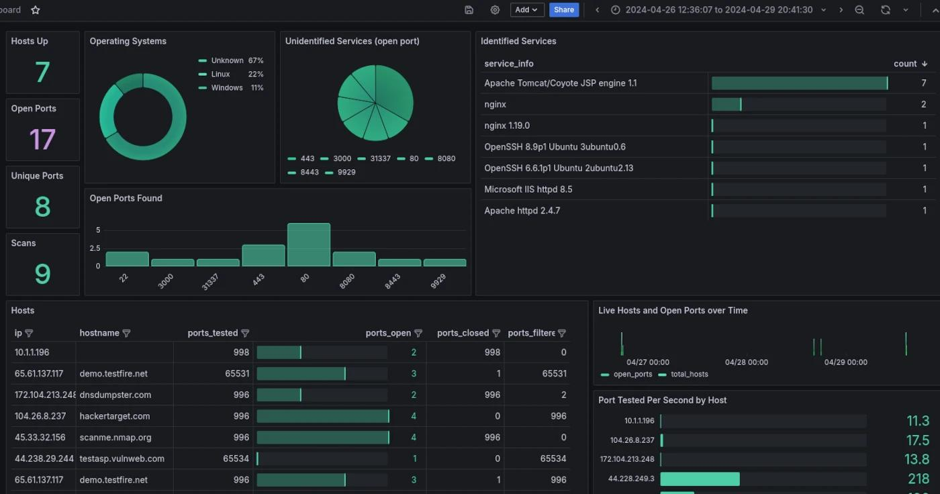
Nmap, short for Network Mapper, is a free and open-source network scanning tool designed to discover hosts and services on a computer network.
The tool helps security professionals answer important questions such as:
- Which devices are active on the network?
- What ports are open?
- Which services are running?
- What operating systems are being used?
- Are there any potential security risks?
By gathering this information, organizations can maintain accurate network inventories and improve their security posture.
The History of Nmap
Nmap was created by cybersecurity researcher Gordon Lyon, commonly known by his online alias Fyodor. The project was first introduced in 1997 through an article published in the well-known security magazine Phrack.
Initially developed as a simple network scanning utility, Nmap rapidly evolved into a powerful security assessment platform.
Major Milestones in Nmap Development
| Year | Milestone |
| 1997 | First public release |
| 1998 | Advanced port scanning techniques introduced |
| 2000 | Operating System Detection added |
| 2004 | Service Version Detection implemented |
| 2007 | Nmap Scripting Engine (NSE) launched |
| 2010-Present | Expanded vulnerability detection and automation capabilities |
Today, Nmap is pre-installed in many popular cybersecurity operating systems, including Kali Linux and Parrot Security OS.
Why is Nmap Important?
Modern organisations manage hundreds or even thousands of devices connected to their networks. Without proper visibility, unknown systems can become security risks.
Nmap provides valuable insights by helping administrators:
Network Discovery
Identify active devices connected to the network.
Security Auditing
Detect exposed services and potential attack surfaces.
Asset Inventory
Maintain an accurate record of network-connected systems.
Vulnerability Assessment
Identify outdated services and misconfigurations.
Compliance Verification
Support security audits and regulatory requirements.
How Nmap Works
At its core, Nmap works by sending specially crafted packets to target systems and analyzing their responses.
When a device receives these packets, it responds differently depending on:
- Open ports
- Closed ports
- Firewall configurations
- Operating system behaviour
- Running services
By examining these responses, Nmap can determine valuable information about the target system.
Typical Nmap Workflow
- Discover active hosts
- Scan target ports
- Identify running services
- Detect operating systems
- Perform security checks
- Generate reports
This process allows administrators to build a complete picture of their network environment.
How Nmap Works
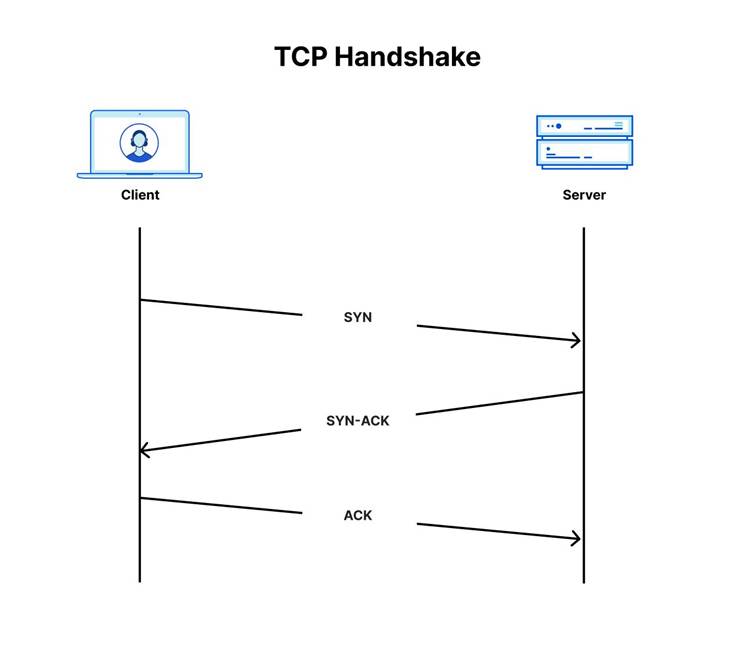
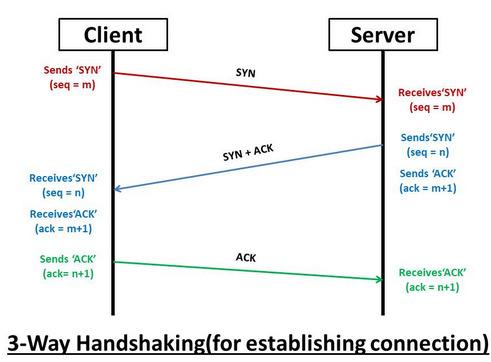
Nmap works by sending specially crafted packets to target hosts and analyzing the responses.
Basic Process
- Send probe packets
- Receive responses
- Analyze packet behavior
- Identify:
- Open ports
- Closed ports
- Filtered ports
- Services
- Operating system
Understanding Port States
When Nmap scans a target, it categorizes ports into different states.
Open
A service is actively listening for connections.
Closed
The port is reachable, but no application is listening.
Filtered
A firewall or security device is blocking access.
Unfiltered
The port is accessible, but Nmap cannot determine whether it is open or closed.
Open|Filtered
Nmap cannot conclusively determine the port state.
Closed|Filtered
Insufficient information is available to identify the exact state.
Understanding these states helps security teams identify potential exposure points within the network.
Popular Nmap Scan Types
Nmap supports multiple scanning techniques depending on the objective.
TCP SYN Scan (Stealth Scan)
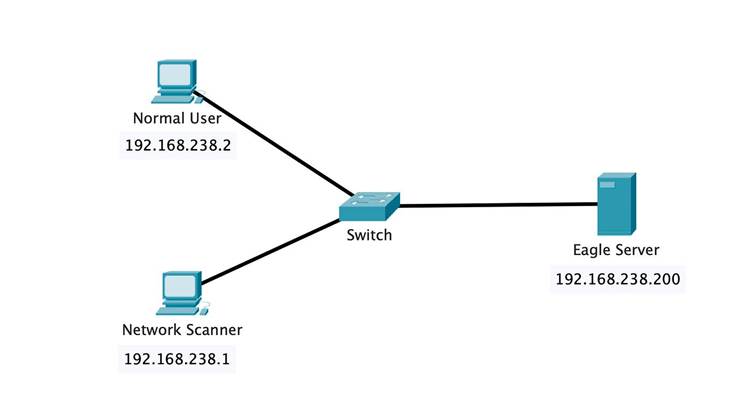
The SYN scan is the most commonly used scan type. It is fast, efficient, and less likely to be logged by target systems.
nmap -sS 192.168.1.10
TCP Connect Scan
This scan completes the full TCP three-way handshake.
nmap -sT 192.168.1.10
UDP Scan
Used for identifying UDP-based services such as DNS and SNMP.
nmap -sU 192.168.1.10
Ping Scan
Used for host discovery without performing a port scan.
nmap -sn 192.168.1.0/24
Operating System Detection
Attempts to identify the target operating system.
sudo nmap -O 192.168.1.10
Installing Nmap on Windows
Installing Nmap on Windows is straightforward.
Step 1
Visit the official Nmap website and download the latest installer.
Step 2
Launch the installer and follow the setup wizard.
Step 3
Install Npcap when prompted. Npcap enables packet capturing and advanced scanning features.
Step 4
Verify the installation.
nmap –version
If the version information appears, the installation was successful.
Installing Nmap on Linux
Ubuntu and Debian
sudo apt update
sudo apt install nmap -y
Rocky Linux, RHEL, and CentOS
sudo dnf install nmap -y
or
sudo yum install nmap -y
Fedora
sudo dnf install nmap
Arch Linux
sudo pacman -S nmap
Verify the installation:
nmap –version
Installing Nmap on macOS
The easiest method is using Homebrew.
Install Homebrew
/bin/bash -c “$(curl -fsSL https://raw.githubusercontent.com/Homebrew/install/HEAD/install.sh)”
Install Nmap
brew install nmap
Verify Installation
nmap –version
Basic Nmap Usage
Scan a Single Host
nmap 192.168.1.10
Scan Multiple Hosts
nmap 192.168.1.10 192.168.1.20
Scan an Entire Subnet
nmap 192.168.1.0/24
Detect Service Versions
nmap -sV 192.168.1.10
Scan Specific Ports
nmap -p 22,80,443 192.168.1.10
Aggressive Scan
nmap -A 192.168.1.10
This scan performs:
- Service Detection
- Operating System Detection
- Script Scanning
- Traceroute
Nmap Architecture
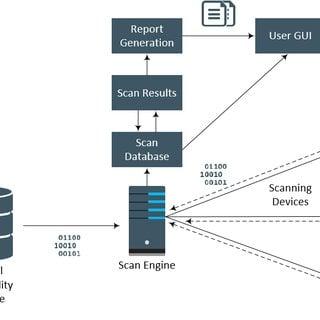
+——————+
| User |
+——–+———+
|
v
+——————+
| Nmap |
+——–+———+
|
+—————-+—————-+
| | |
v v v
Host Discovery Port Scanning NSE Scripts
| | |
+—————-+—————-+
|
v
+——————+
| Generated Report |
+——————+
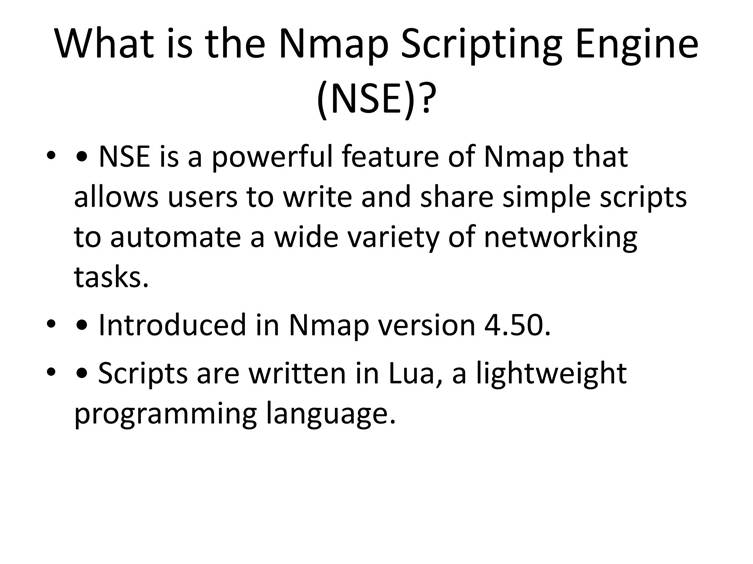
The Power of the Nmap Scripting Engine (NSE)
One of Nmap’s most powerful features is the Nmap Scripting Engine (NSE).
NSE allows users to automate security checks and vulnerability detection using thousands of community-developed scripts.
Example: Retrieve Web Page Title
nmap –script http-title 192.168.1.10
Example: Vulnerability Scan
nmap –script vuln 192.168.1.10
NSE scripts can significantly reduce the time required for security assessments.
Generating Reports with Nmap
Professional reporting is essential for documenting findings and sharing results with stakeholders.
Normal Text Report
nmap -oN report.txt 192.168.1.10
XML Report
nmap -oX report.xml 192.168.1.10
XML reports are commonly imported into SIEM platforms and vulnerability management tools.
Grepable Report
nmap -oG report.grep 192.168.1.10
Useful for scripting and automation.
Generate All Formats Simultaneously
nmap -oA complete_report 192.168.1.10
This command generates:
- complete_report.nmap
- complete_report.xml
- complete_report.gnmap
Example Professional Nmap Assessment
Consider a scenario where an administrator scans a web server.
sudo nmap -sS -sV -O -A 192.168.1.10
Sample Findings
| Port | Service | Version |
| 22 | SSH | OpenSSH 9.0 |
| 80 | HTTP | Apache 2.4 |
| 443 | HTTPS | Nginx 1.24 |
Observations
- SSH is publicly accessible.
- Web services are active.
- The operating system appears to be Linux-based.
Best Practices
- Obtain proper authorization before scanning.
- Start with host discovery (-sn).
- Use version detection (-sV).
- Save scan results (-oN, -oX).
- Use NSE scripts carefully.
- Schedule periodic scans for security monitoring.
- Validate findings manually before reporting vulnerabilities.
Example Complete Scan
sudo nmap -sS -sV -O -A -T4 -oN full_scan_report.txt 192.168.1.0/24
This command performs:
- Host Discovery
- SYN Scan
- Service Detection
- OS Detection
- NSE Script Scanning
- Report Generation
Recommendations
- Restrict administrative access.
- Disable unused services.
- Regularly update software packages.
- Conduct periodic vulnerability assessments.
Best Practices for Using Nmap
To maximize effectiveness while maintaining security and compliance, follow these best practices:
- Always obtain proper authorization before scanning.
- Begin with host discovery scans.
- Use service version detection whenever possible.
- Save scan results for future comparison.
- Verify findings manually.
- Schedule regular network scans.
- Document and remediate discovered risks.
Conclusion
Nmap remains one of the most valuable tools in the cybersecurity industry. Its ability to discover hosts, identify services, detect operating systems, automate security checks, and generate detailed reports makes it indispensable for network administrators and security professionals.
Whether you are building a home lab, managing enterprise infrastructure, conducting security assessments, or preparing for cybersecurity certifications, learning Nmap is an investment that will continue to pay dividends throughout your career.
As networks become increasingly complex and threats continue to evolve, tools like Nmap provide the visibility needed to maintain a secure and well-managed environment.
For cybersecurity professionals, mastering Nmap is not just useful—it is essential.
1 thought on “Nmap: Complete Beginner-to-Professional Guide for Network Scanning and Security Auditing”