
Introduction
In today’s interconnected digital world, every activity performed on a network generates data packets. Whether you’re browsing a website, sending an email, streaming a video, or connecting to a cloud service, thousands of packets travel across networks every second. Understanding what happens inside these packets is crucial for network administrators, cybersecurity professionals, ethical hackers, and IT engineers.
This is where Wireshark becomes invaluable.
Wireshark is one of the most widely used network protocol analyzers in the world. It allows users to capture, inspect, analyze, and troubleshoot network traffic in real time. From diagnosing connectivity issues to investigating security incidents, Wireshark provides deep visibility into network communications.
This article explores the history of Wireshark, its evolution, installation procedures, working principles, supported protocols, practical usage, and techniques for extracting valuable information from captured packets.
What is Wireshark?
Wireshark is a free and open-source network packet analyzer that captures network traffic and displays packet-level information in a human-readable format.
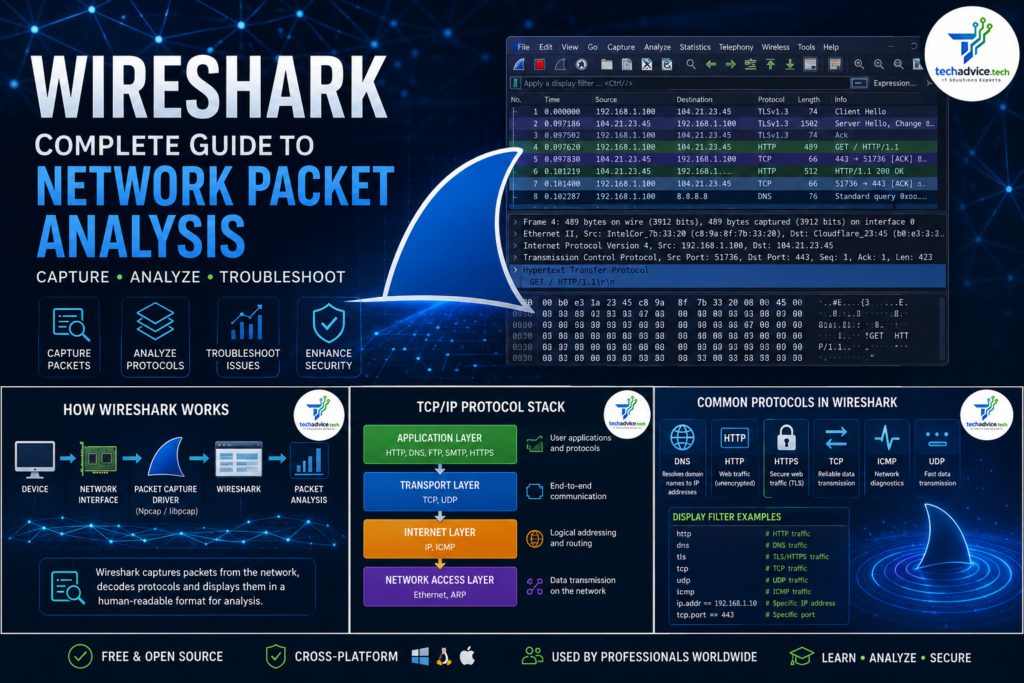
It enables users to:
- Monitor network communications
- Troubleshoot network issues
- Analyze application traffic
- Detect security threats
- Investigate suspicious activities
- Learn networking protocols
- Perform digital forensics
Unlike basic network monitoring tools that provide only summary statistics, Wireshark allows users to inspect the contents of individual packets traveling through a network.
History and Evolution of Wireshark
The Beginning
The story of Wireshark started in 1998 when software engineer Gerald Combs developed a packet analysis tool called Ethereal.
The goal was simple:
Create a free packet analyzer capable of helping network professionals troubleshoot communication issues.
As networking technologies evolved, Ethereal quickly gained popularity among system administrators and security professionals.
Transition from Ethereal to Wireshark
In 2006, due to trademark restrictions associated with the Ethereal name, the project was renamed to Wireshark.
Although the name changed, development continued uninterrupted.
Since then, Wireshark has become the industry’s leading packet analysis platform.
Modern Wireshark
Today’s Wireshark:
- Supports thousands of protocols
- Works on Windows, Linux, and macOS
- Includes advanced filtering capabilities
- Supports packet decryption
- Provides graphical analysis tools
- Integrates with cybersecurity workflows
It is now used by:
- Network Engineers
- SOC Analysts
- Incident Responders
- Ethical Hackers
- Penetration Testers
- Digital Forensic Experts
- Researchers
How Wireshark Works
To understand Wireshark, it’s important to understand packet capture.
Whenever data travels across a network, it is broken into small units called packets.
Wireshark captures these packets from a network interface card (NIC) and displays detailed information about each packet.
The process works as follows:
Device
↓
Network Interface Card
↓
Packet Capture Driver
↓
Wireshark
↓
Packet Analysis
Packet Capture Architecture
Wireshark relies on packet capture libraries:
Windows
Uses:
- Npcap
- WinPcap (legacy)
Linux
Uses:
- libpcap
macOS
Uses:
- libpcap
These libraries allow Wireshark to place network interfaces into promiscuous mode, enabling packet capture.
Understanding Promiscuous Mode
Normally, a network card only accepts packets destined for its own MAC address.
In promiscuous mode:
- All packets are captured
- Network traffic becomes visible
- Deep analysis becomes possible
This capability is extremely useful during:
- Security investigations
- Network troubleshooting
- Traffic analysis
Protocols Supported by Wireshark
Wireshark supports more than 3,000 protocols.
Some commonly analyzed protocols include:
| Layer | Protocol |
| Application | HTTP |
| Application | HTTPS |
| Application | DNS |
| Application | FTP |
| Application | SMTP |
| Transport | TCP |
| Transport | UDP |
| Internet | IP |
| Internet | ICMP |
| Network Access | ARP |
TCP/IP Protocol Analysis in Wireshark
DNS
Used for translating domain names into IP addresses.
Example:
techadvice.tech → 104.x.x.x
Filter:
dns
HTTP
Used for web communication.
Filter:
http
Wireshark can display:
- Requests
- Responses
- Status codes
- Headers
HTTPS
Encrypted web traffic.
Filter:
tls
Although content is encrypted, Wireshark can still reveal:
- Source IP
- Destination IP
- TLS version
- Certificates
TCP
Provides reliable communication.
Filter:
tcp
Useful for:
- Connection establishment
- Retransmission analysis
- Session tracking
ICMP
Used for diagnostics.
Filter:
icmp
Commonly seen during:
- Ping
- Traceroute
Installing Wireshark on Windows
Step 1
Download Wireshark from:
Step 2
Run installer.
Select:
- Wireshark
- Npcap
Install both components.
Step 3
Launch Wireshark.
You should see available network interfaces.
Example:
Ethernet
Wi-Fi
Loopback
Installing Wireshark on Linux
Ubuntu/Debian
sudo apt update
sudo apt install wireshark -y
Verify installation:
wireshark –version
RHEL/CentOS/Rocky Linux
sudo dnf install wireshark -y
or
sudo yum install wireshark -y
Arch Linux
sudo pacman -S wireshark-qt
Installing Wireshark on macOS
Using Homebrew:
brew install –cask wireshark
Verify:
wireshark –version
Launch:
open -a Wireshark
How to Use Wireshark
Step 1: Select Interface
Choose:
- Ethernet
- Wi-Fi
Double-click to begin packet capture.
Step 2: Generate Traffic
Open:
- Browser
- Terminal
- Email application
Traffic immediately appears in Wireshark.
Step 3: Stop Capture
Click:
Red Square Stop Button
Captured packets remain available for analysis.
Understanding the Wireshark Interface
The interface contains three major sections.
Packet List Pane
Displays:
- Time
- Source
- Destination
- Protocol
- Length
Packet Details Pane
Displays protocol hierarchy.
Example:
Frame
Ethernet
IP
TCP
HTTP
Packet Bytes Pane
Displays raw packet data in hexadecimal format.
Example:
45 00 00 34 12 45
Useful Wireshark Filters
HTTP Traffic
http
HTTPS Traffic
tls
DNS Requests
dns
TCP Traffic
tcp
UDP Traffic
udp
ICMP
icmp
Specific IP Address
ip.addr == 192.168.1.10
Specific Port
tcp.port == 443
Practical Example: Investigating Website Access
Suppose a user reports:
“I cannot access techadvice.tech”
Capture Traffic
Start Wireshark.
Apply:
dns
Check:
- Was DNS request sent?
- Was DNS response received?
If DNS works:
Apply:
tcp.port == 443
Look for:
- SYN
- SYN ACK
- ACK
If connection fails:
Possible causes:
- Firewall
- Server issue
- Network problem
Extracting Information from Wireshark Results
Example Packet
Source:
192.168.1.100
Destination:
104.21.x.x
Protocol:
HTTPS
Port:
443
Information obtained:
| Data | Meaning |
| Source IP | Client Device |
| Destination IP | Web Server |
| Protocol | HTTPS |
| Port | Secure Web Traffic |
| Time | Packet Timestamp |
Detecting Security Threats Using Wireshark
Wireshark is commonly used for:
Port Scanning Detection
Look for:
tcp.flags.syn == 1
Large numbers of SYN packets may indicate scanning activity.
Malware Communication
Look for:
- Unknown domains
- Suspicious IP addresses
- Repeated outbound connections
DNS Tunneling
Indicators:
- Excessive DNS queries
- Long encoded domain names
Saving and Exporting Captures
Save capture:
File → Save As
Formats:
- PCAP
- PCAPNG
These files can later be analyzed by:
- Wireshark
- Zeek
- NetworkMiner
- Security Onion
Advantages of Wireshark
✔ Free and Open Source
✔ Supports Thousands of Protocols
✔ Real-Time Packet Analysis
✔ Cross-Platform
✔ Strong Community Support
✔ Powerful Filtering Features
✔ Excellent Learning Tool
Limitations of Wireshark
✖ Requires Networking Knowledge
✖ Large Captures Can Become Difficult to Analyze
✖ Encrypted Traffic Cannot Always Be Fully Decoded
✖ Not Designed for Continuous Enterprise Monitoring
Conclusion
Wireshark has become the gold standard for packet analysis and network troubleshooting. Its ability to capture and inspect network traffic at a granular level makes it an indispensable tool for network engineers, cybersecurity professionals, ethical hackers, and incident response teams.
Whether you are troubleshooting a DNS issue, investigating suspicious traffic, analyzing TCP handshakes, or learning how network protocols operate, Wireshark provides unparalleled visibility into network communications.
For anyone serious about networking or cybersecurity, mastering Wireshark is not just a useful skill—it is an essential one.
Great content! Keep up the good work!