
Introduction
Web applications are now an essential part of business operations. Banking portals, e-commerce websites, cloud dashboards, content management systems and enterprise applications process valuable information every day. However, security weaknesses in these applications can expose sensitive data, compromise user accounts and affect business continuity.
Identifying these weaknesses before attackers discover them is an important part of application security testing.
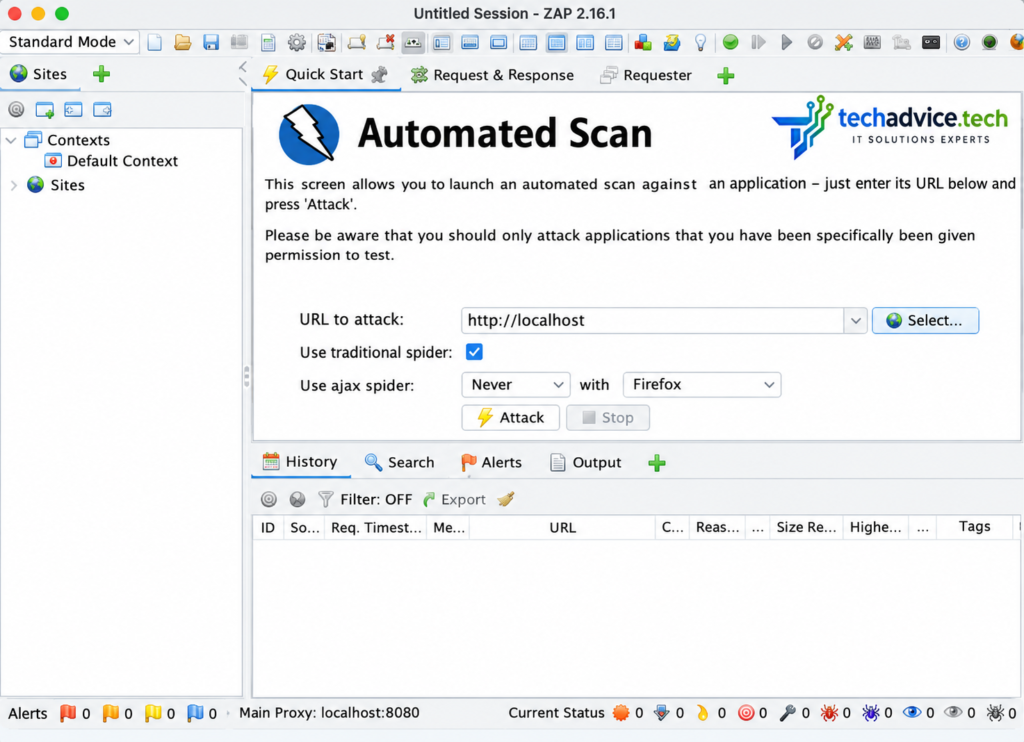
OWASP ZAP (Zed Attack Proxy) is a free, open-source web application security testing tool that helps developers, penetration testers and security professionals discover potential vulnerabilities. It can inspect HTTP and HTTPS traffic, explore application pages, perform passive security checks and conduct active security tests against authorized targets.
ZAP is suitable for manual testing, automated security assessments and integration into software development pipelines.
What Is OWASP ZAP?
OWASP ZAP is a web application security testing tool that operates primarily as an intercepting proxy between a client, such as a web browser, and a web application.
When a browser communicates with an application through ZAP, the tool can inspect requests and responses, record application activity, identify potential security weaknesses and support controlled security testing.
Its main capabilities include:
- Intercepting and inspecting HTTP and HTTPS traffic.
- Discovering application pages and endpoints through crawling.
- Identifying potential security misconfigurations and vulnerabilities.
- Performing passive and active security scans.
- Testing applications that use JavaScript and modern web technologies.
- Generating reports in supported formats.
- Automating security tests through APIs, command-line tools and CI/CD workflows.
ZAP is extensible through add-ons, allowing users to add scanning rules and other features as needed.
Official website: https://www.zaproxy.org/
History and Evolution of OWASP ZAP
OWASP ZAP emerged from the open-source web application security testing community. It became a prominent OWASP project in 2010 and developed into a widely used tool for application security testing.
Its development reflects the changing requirements of web security, from inspecting traditional HTML applications to testing modern JavaScript-heavy applications and integrating automated security checks into development workflows.
Major stages in its evolution
Early development: Open-source web security testing
ZAP was developed to make web application security testing accessible to a broad audience, including developers, students and security professionals who needed an open-source alternative to commercial testing tools.
Expansion of core testing capabilities
The tool developed capabilities for proxy-based inspection, application crawling, passive scanning, active scanning and manual testing. These features enabled testers to investigate application behavior and assess potential weaknesses.
Add-on architecture and extensibility
An add-on marketplace made it possible to extend ZAP with additional scanning rules, browser-based crawling capabilities, scripts and reporting features.
Support for modern web applications
As applications increasingly adopted JavaScript frameworks, asynchronous requests and complex authentication workflows, ZAP expanded its support for browser-assisted exploration and more advanced application testing.
Automation and DevSecOps integration
ZAP developed automation capabilities that support repeatable scans, command-line execution, APIs and integration with build and deployment pipelines.
Current development approach
ZAP continues to evolve through community contributions, core releases and add-on updates. Its available features depend on the installed release and add-ons, so users should consult the official release notes and documentation rather than rely on a fixed historical feature list.
Official project resources:
- Project: https://www.zaproxy.org/
- Documentation: https://www.zaproxy.org/docs/
- Releases: https://github.com/zaproxy/zaproxy/releases
- Source code: https://github.com/zaproxy/zaproxy
3. Why Is OWASP ZAP Used?
The primary purpose of ZAP is to help identify security weaknesses in web applications so that they can be investigated and corrected.
Typical objectives include:
- Detecting potentially insecure HTTP security headers.
- Identifying mixed-content or transport-security concerns.
- Finding possible cross-site scripting (XSS) weaknesses.
- Testing for certain SQL injection vulnerabilities.
- Identifying exposed information and potentially sensitive responses.
- Reviewing cookies and session-related security attributes.
- Discovering application endpoints and unexpected resources.
- Supporting regression testing after application changes.
- Providing evidence for vulnerability remediation.
- Automating selected security checks during software development.
ZAP findings are indicators that require investigation. A reported alert does not automatically prove that a vulnerability is exploitable or that an application is insecure in every relevant scenario.
Architecture of OWASP ZAP
ZAP combines several components that work together during a web application security assessment.
Intercepting proxy
The proxy receives browser requests, forwards them to the target application and records the corresponding responses. It enables testers to inspect and, where appropriate, modify HTTP messages.
Traditional spider
The traditional spider follows links and examines application content to discover additional URLs. It is efficient for many traditional HTML applications but may miss functionality that requires substantial JavaScript execution.
Browser-assisted crawling
Modern or browser-assisted crawling can discover functionality in JavaScript-heavy applications by interacting with rendered pages. Available options depend on installed add-ons and the ZAP release.
Passive scanner
The passive scanner examines requests and responses without modifying them to perform attacks. It can identify potential issues such as missing security headers, information disclosure and cookie configuration concerns.
Active scanner
The active scanner sends crafted requests designed to test for particular vulnerability classes. Because these requests can affect application behavior or data, active scanning must be restricted to authorized targets and appropriately controlled environments.
Alert and reporting engine
ZAP organizes findings into alerts containing information such as the affected URL, risk classification, evidence, description and suggested remediation. Supported reporting add-ons can export results for technical analysis and management review.
API and automation framework
The API and automation capabilities allow testers to run repeatable tests, control scans, retrieve findings and incorporate security testing into development pipelines.
Working Methodology of OWASP ZAP
A typical ZAP assessment follows a structured sequence.
Step 1: Define the scope
Identify the application, permitted hostnames, test environment, authentication requirements and excluded endpoints. Confirm written authorization before scanning.
Step 2: Configure ZAP
Install the tool, verify the listening proxy settings and configure a browser or test client to route traffic through ZAP.
Step 3: Explore the application
Browse the application and allow ZAP to record the requests and responses. Use crawling features to discover additional pages and endpoints.
Step 4: Perform passive analysis
Review the alerts generated during normal browsing and crawling. Investigate potentially insecure headers, cookies, information disclosure and other observations.
Step 5: Conduct controlled active testing
Where authorization permits, select an appropriate scan policy and test the in-scope application. Begin with a test environment whenever possible and avoid destructive actions.
Step 6: Review findings
Inspect each alert, affected URL, supporting evidence and risk classification. Check for false positives and determine whether the issue is reproducible.
Step 7: Generate the report
Export the findings in a suitable format, such as HTML or JSON, when supported by the installed reporting add-ons.
Step 8: Remediate and retest
Share the findings with the development or operations team, apply corrective changes and repeat the relevant tests to confirm remediation.
Installation of OWASP ZAP on Windows
OWASP ZAP provides a Windows installer. Current documentation states that Windows and cross-platform installations require Java 17 or later; the macOS installer bundles a suitable Java runtime. Always verify the requirements for the specific release you download.

Getting Started+1
Step 1: Download ZAP
Open the official download page:
https://www.zaproxy.org/download
Select the Windows installer appropriate for your system.
Step 2: Install the application
- Run the downloaded installer.
- Follow the installation wizard.
- Accept the license terms if you agree.
- Complete the installation.
- Start ZAP from the Windows Start menu or desktop shortcut.
Step 3: Verify Java
If your installation requires a separately installed Java runtime, open Command Prompt and run:
java -version
Check that the installed Java version meets the requirements stated for your ZAP release.
If Java is missing or outdated, install a compatible Java 17+ runtime and reopen the terminal before launching ZAP.
Step 4: Launch ZAP
The default installation path varies by installer version. One documented example is:
C:\Program Files\ZAP\Zed Attack Proxy\
You may launch ZAP through the Start menu or use the startup script in the actual installation directory.
Step 5: Start a session
When prompted, decide whether to save the session. Saving it is useful for assessments that require later review, evidence collection or report preparation.
Your Windows installation is now ready for configuration and authorized testing.
7. Installation of OWASP ZAP on Linux
ZAP supports Linux installations, including the archive-based distribution. The exact installation procedure may vary depending on the distribution and the release package.
The following example uses Ubuntu or Debian-based Linux.
Step 1: Update package information
Open a terminal and run:
sudo apt update
Step 2: Install Java
For a release that requires Java 17 or later:
sudo apt install openjdk-17-jre
Verify the installation:
java -version
If the package is unavailable for your distribution, use a supported Java 17+ package from its official repositories or another trusted Java distribution.
Step 3: Download ZAP
Visit:
https://www.zaproxy.org/download
Download the Linux package provided for the release you intend to use.
Step 4: Extract the archive
For a downloaded .tar.gz package, move to its download directory and extract it:
tar -xzf ZAP_<version>_Linux.tar.gz
Replace the filename with the exact name of the downloaded archive.
Step 5: Enter the extracted directory
For example:
cd ZAP_<version>
The directory name depends on the downloaded package.
Step 6: Launch ZAP
Run the startup script included in the extracted directory:
./zap.sh
If the script does not have execute permission, you can set it with:
chmod +x zap.sh
./zap.sh
Use the actual path of the extracted directory rather than assuming that every release uses the same directory name.
Alternative: Run ZAP using Docker
If you prefer a container-based installation, ZAP also provides Docker images.
Official Docker documentation:
https://www.zaproxy.org/docs/docker
Docker can be useful for automated testing and disposable assessment environments. The image and command should be selected according to the intended scan type and the current official documentation.
Installation of OWASP ZAP on macOS
ZAP provides a macOS application package that can be installed and launched like other macOS applications. The official installer includes a suitable Java runtime.

Getting Started+1
Step 1: Download ZAP
Visit:
https://www.zaproxy.org/download
Download the macOS package appropriate for your Mac.
Step 2: Install the application
- Open the downloaded package.
- Follow the installation instructions.
- Move the ZAP application into the Applications folder if desired.
- Launch ZAP.
Step 3: Handle macOS security warnings
Depending on the release and your macOS security settings, you may receive a warning that the developer cannot be verified.
Before overriding such a warning, verify that you obtained the installer from the official ZAP website and that the download is authentic. If macOS blocks the application, review the available options under System Settings → Privacy & Security and proceed only if you trust the verified application.
Step 4: Launch ZAP from Terminal
If the application is installed at /Applications/ZAP.app, the documented startup script location can be used:
/Applications/ZAP.app/Contents/Java/zap.sh
The internal path may vary between releases, so consult the installed application’s contents if the command is unavailable.
Step 5: Confirm that ZAP starts
Once the interface opens, review the session prompt and ensure the application is ready before configuring your browser or starting a scan.
9. How to Configure a Browser with ZAP
ZAP is most useful when application traffic passes through its proxy. The default local proxy commonly uses 127.0.0.1:8080, although the actual address and port should be checked in ZAP’s settings.
Configuration procedure
- Start ZAP.
- Check the local proxy address and port.
- Use the browser-launching option in ZAP Quick Start, if available, or configure a separate browser profile to use the proxy.
- Open the authorized test application.
- Browse several pages, sign in if required and exercise normal application functionality.
- Return to ZAP and inspect the Sites and History panels.
If HTTPS traffic must be inspected, configure ZAP’s certificate trust appropriately for the dedicated test browser. Do not install a testing certificate as a trusted authority across systems unnecessarily, and remove test-only trust settings when they are no longer required.
If no requests appear, verify that the browser is using the correct proxy, that ZAP is listening on that address and port, and that the target application is reachable.
Official guide: https://www.zaproxy.org/docs/desktop/start/
How to Perform a Basic Web Application Scan
For beginners, Quick Start provides a convenient way to explore an application and begin security testing.
Important: Use only an application that you own or have explicit permission to test. Active scans send attack-like requests and may alter application behavior or data.
Procedure
- Launch ZAP.
- Open the Quick Start tab.
- Select Automated Scan.
- Enter the full URL of your authorized test application, including the appropriate scheme, such as https://.
- Review the target and scan settings.
- Start the scan.
- Monitor crawling and scanning activity.
- Review the generated alerts.
The scan can discover application pages, passively analyze traffic and perform active tests according to the selected configuration. The exact workflow and available options depend on your ZAP version and installed add-ons.

Getting Started+1
Example test target
For learning, use a deliberately vulnerable training application such as OWASP Juice Shop or another lab designed for security testing. Keep it isolated from production systems and avoid exposing vulnerable services to the public internet.
Do not assume that a scan of a public website is authorized simply because the site is accessible.
How to Generate a Vulnerability Assessment Report in OWASP ZAP
A vulnerability report is one of the most important outputs of a web application security assessment. It helps developers understand the findings, allows security teams to prioritize remediation and provides evidence for retesting.
ZAP supports report generation through its reporting capabilities and add-ons. The available templates and output formats depend on the installed version.

Documentation+1
Method 1: Generate a report from the desktop interface
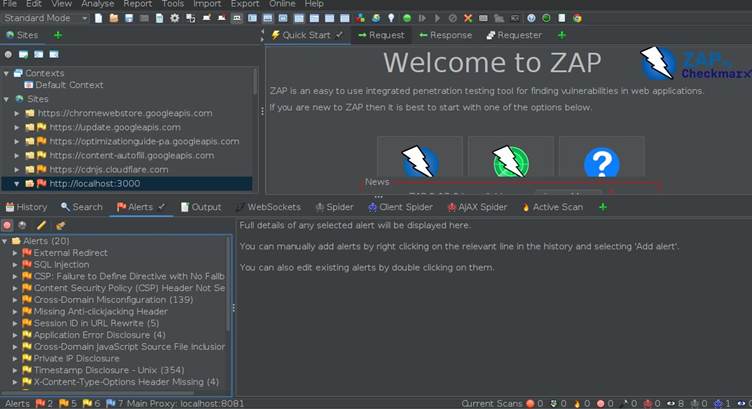
Step 1 — Review the alerts
Open the Alerts panel. Examine each finding, affected URL, risk level, evidence and suggested remediation.
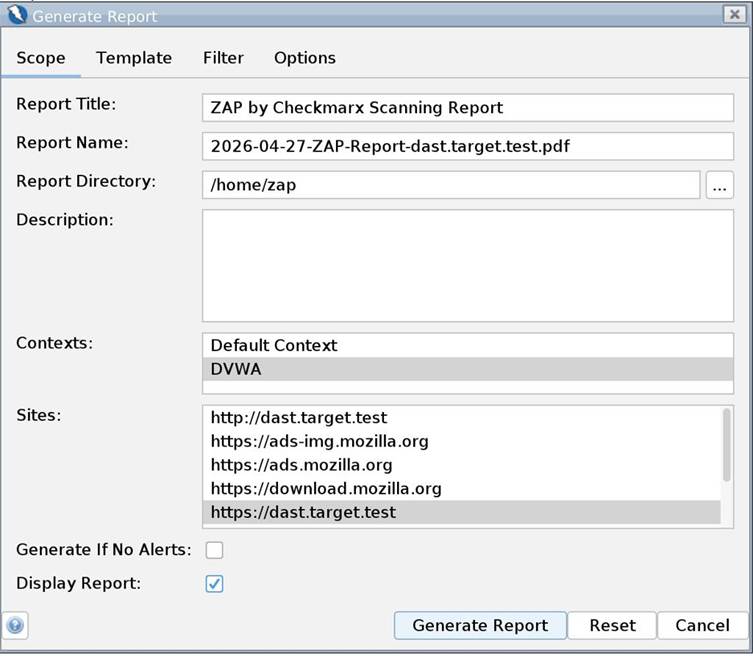
Step 2 — Open the reporting feature
Find the Report menu or the report-generation option available in your installed ZAP version. If necessary, install the relevant reporting add-on from the ZAP Marketplace.
Step 3 — Configure the report
Select an available template, output format, destination filename and scope. Include only the hosts and findings relevant to the assessment.
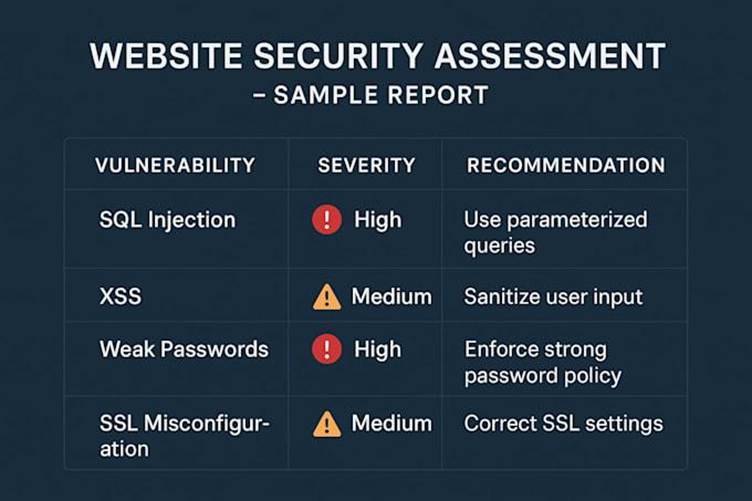
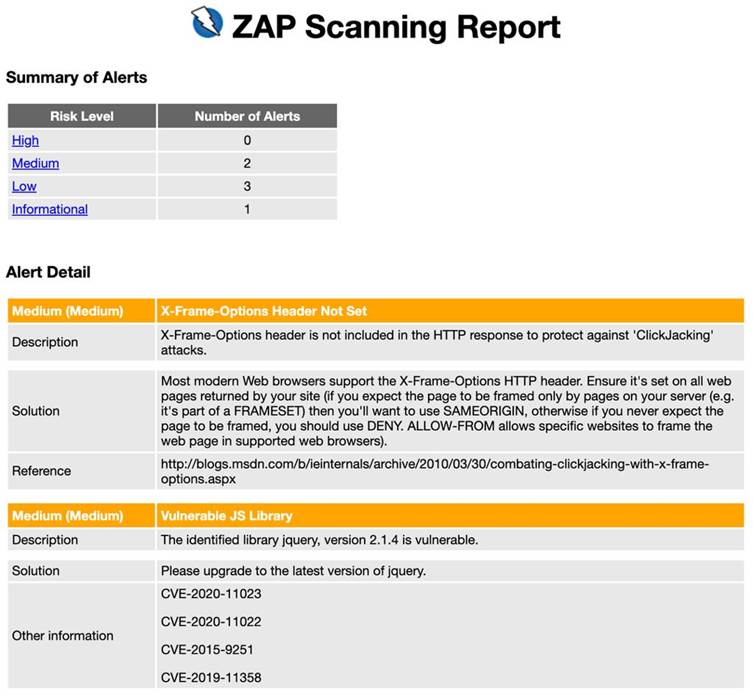
Step 4 — Generate and review
Generate the report, open the output file and check its contents. Confirm that the target, scan period, findings and risk descriptions are accurate.
Method 2: Generate a report using the command line
ZAP also supports command-line execution. Its exact reporting commands depend on the reporting add-on and version, so use the current official documentation for the relevant options.
Documentation: https://www.zaproxy.org/docs/desktop/cmdline/
For example, you can start ZAP in daemon mode on a Linux system using:
./zap.sh -daemon -host 127.0.0.1 -port 8080
This starts ZAP without its desktop interface, listening on the specified local address and port. The API and automation configuration must still be set up correctly before a scan can be controlled or a report exported.
Security note: Keep the API restricted to trusted local clients or a properly secured management network. Do not expose an unauthenticated ZAP API to the internet.
Method 3: Generate reports through automation
For repeatable testing, ZAP’s Automation Framework supports declarative scan workflows. Depending on the installed version and add-ons, an automation plan can define the target context, crawling, passive scanning, active scanning and reporting.
Official documentation: https://www.zaproxy.org/docs/automate/
This approach is particularly useful for recurring security checks and CI/CD integration.
Understanding OWASP ZAP Report Findings
A report should be reviewed carefully rather than treated as a simple list of confirmed vulnerabilities.
| Risk level | Meaning | Recommended action |
| High | Potentially serious security weakness | Investigate and prioritize urgently |
| Medium | Potentially significant weakness requiring review | Validate and schedule remediation |
| Low | Lower-impact issue or security weakness | Review and address according to risk |
| Informational | Observation that may help further testing | Assess relevance and document if useful |
ZAP may also classify alerts as false positives or other confidence levels. Risk and confidence are different: risk indicates potential impact, while confidence describes how strongly the scanner believes its finding is valid.
For every important finding, record:
- Vulnerability name and risk level.
- Affected URL or endpoint.
- Description of the issue.
- Evidence collected during testing.
- Potential business and technical impact.
- Recommended remediation.
- Validation results after the fix.
Do not publish unredacted reports containing session tokens, personal information, internal URLs or other sensitive application data.
Common OWASP ZAP Use Cases3.
Web application penetration testing
Security professionals use ZAP to explore web applications, identify potential weaknesses and support authorized manual testing.
Secure software development
Development teams can run selected scans during development and before releases to identify security regressions.
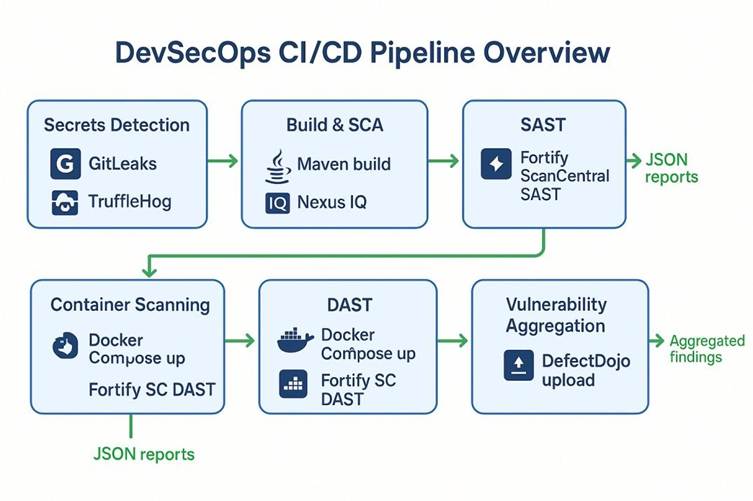
DevSecOps and CI/CD
Automated scans can be incorporated into build pipelines to provide repeatable security feedback.

Cybersecurity education
Students and beginners can learn HTTP inspection, crawling, security alerts and vulnerability verification using controlled training applications.
Security assessments and remediation tracking
Teams can use findings as technical input for vulnerability management, subject to the organization’s assessment methodology and reporting requirements.
Advantages of OWASP ZAP
- Open source: Available without a commercial software licence fee.
- Cross-platform: Supports Windows, Linux and macOS.
- Beginner-friendly options: Quick Start provides a straightforward introduction to scanning.
- Manual and automated testing: Supports both interactive investigation and repeatable security checks.
- Extensible: Add-ons expand its scanning, crawling and reporting functionality.
- Automation support: Can be integrated into suitable development and testing workflows.
- Community resources: Documentation, source code and community contributions are publicly available.
Limitations of OWASP ZAP
Despite its capabilities, ZAP does not replace a complete security assessment.
- False positives: Some alerts may not represent exploitable vulnerabilities.
- Incomplete coverage: Crawling may miss pages behind complex authentication, dynamic navigation or inaccessible workflows.
- Authentication complexity: Applications using multi-factor authentication, single sign-on or advanced session handling may require additional configuration.
- Business logic weaknesses: Automated scanners generally cannot fully understand application-specific business rules.
- Active scanning risks: Testing may trigger unexpected changes, account lockouts, excessive traffic or data modifications.
- Manual verification required: Important findings need validation by a qualified tester.
- Configuration dependency: Results depend on scan policies, scope, installed add-ons and the application’s behavior.
A clean ZAP report does not prove that an application is completely secure.
OWASP ZAP Best Practices
For effective and responsible testing:
- Obtain written authorization before testing.
- Prefer a staging environment with representative configuration.
- Define target scope and excluded endpoints before scanning.
- Back up relevant data and coordinate with application owners.
- Begin with passive scanning when assessing an unfamiliar application.
- Configure authentication and session handling correctly.
- Use suitable crawl settings for JavaScript-heavy applications.
- Limit active scanning to approved targets and safe testing windows.
- Review alerts manually and document false positives.
- Retest findings after remediation.
- Protect reports as confidential security records.
- Keep ZAP and its add-ons updated.
- Integrate automated testing into the development lifecycle where appropriate.
OWASP ZAP and the OWASP Top 10
ZAP can help investigate vulnerability categories associated with the OWASP Top 10, including injection risks, security misconfiguration and some authentication or access-control weaknesses.
However, the OWASP Top 10 is an awareness document, not a complete testing methodology. Not every category can be reliably detected through automated scanning. Authorization logic, insecure business workflows and other complex issues may require manual testing.
For guidance on mapping ZAP functionality to OWASP Top 10 categories, consult the official ZAP documentation:
Conclusion
OWASP ZAP is a valuable tool for developers, penetration testers, students and cybersecurity teams who need to assess web application security. Its intercepting proxy, crawling capabilities, passive and active scanners, add-on ecosystem and reporting options support a broad range of security testing activities.
Its greatest value comes from combining automated detection with manual verification, appropriate authorization and a structured remediation process. Organizations should treat ZAP findings as technical evidence to investigate, not as a substitute for comprehensive application security testing.
For anyone beginning a career in web application security, learning to configure ZAP, explore an application, interpret alerts and generate a clear vulnerability report is a practical foundation for further security testing skills.
Official resources
- ZAP website: https://www.zaproxy.org/
- Getting started: https://www.zaproxy.org/getting-started/
- Documentation: https://www.zaproxy.org/docs/
- Download: https://www.zaproxy.org/download/
- GitHub repository: https://github.com/zaproxy/zaproxy
- Docker guide: https://www.zaproxy.org/docs/docker/
1 thought on “OWASP ZAP: Complete Guide to History, Installation, Working Methodology and Vulnerability Report Generation”